Edit the question and its context
Review the wording, response options, answer key, feedback, and media. Check the supported metadata and accessibility fields for the question type.
Review accessibility responsibilities →Edit a question and open its preview in the same workspace. Start from your own content or explore the prepared Presidents assessment.
The Presidents sample includes recall, chronology, interactive content, and constructed-response sections.
Use the example to review the prompt, answer options, scoring, and preview. Then examine the information attached to the question.
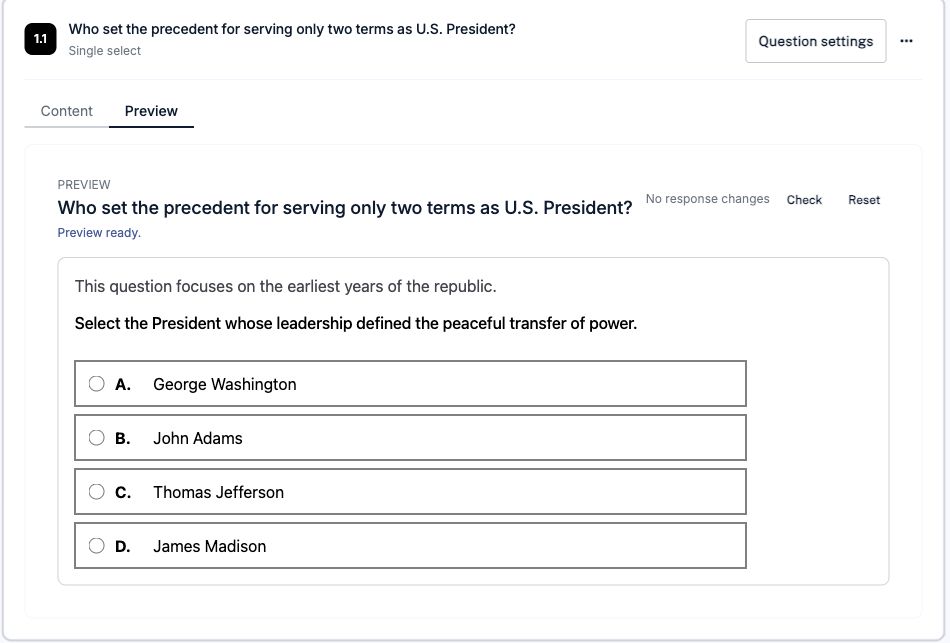
The screenshot shows the first question in the editor’s Preview tab. Open the sample to inspect it in your workspace.
Review the wording, response options, answer key, feedback, and media. Check the supported metadata and accessibility fields for the question type.
Review accessibility responsibilities →Inspect how the question renders and responds to input. Complex interactions and destination-specific behavior need their own checks.
Check item-type coverage →Assemble the content and review the applicable settings. Check the package before exporting it or publishing it for delivery.
Review the delivery workflow →Review the question revision used in an assessment. For published delivery, distinguish an authoring correction from a change to an existing learner result.
Scoring corrections and learner records belong to the delivery and reporting workflow.
Review result and scoring evidence →QTI packages carry structured assessment content. Verify the supported interactions, media, metadata, and scoring behavior in your intended destination.
Review the QTI capability matrix → Request an authoring review